
ProLiant Mobile
Proliant, IncBusiness
3.3359.00 Reviews
- Version
- 3.6.9
- Installs
- 500.00K
- Age Rating
- Everyone
Screenshots
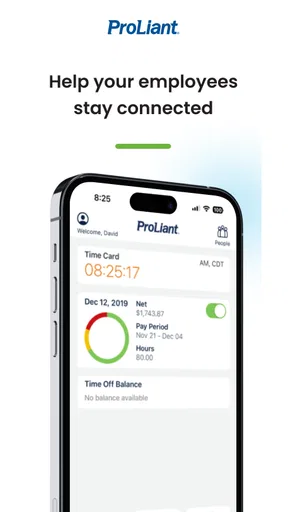
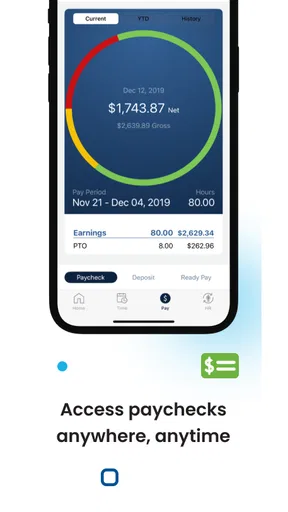
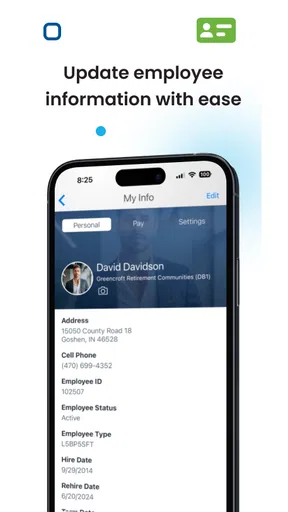
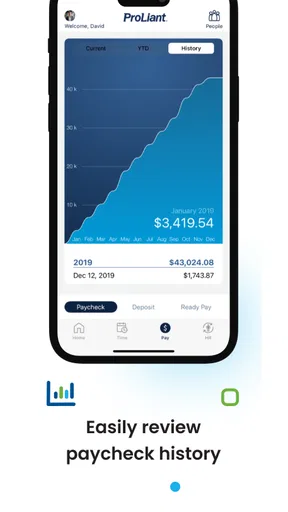
Our Review of ProLiant Mobile
 Analysis by Appyee
I approached ProLiant Mobile as the kind of business app people open because they need to check something related to work, not because they want to spend time exploring an app. That distinction matters. It is a free employee self-service application from Proliant, Inc, aimed at putting workplace information in a more convenient mobile setting. My overall impression is practical rather than flashy: its value depends heavily on whether your employer has connected the service correctly and whether your account is ready to use it.
That makes this a slightly different review from one about a typical consumer app. The main question is not whether the interface is entertaining or packed with optional tools. The real question is whether ProLiant Mobile reduces the need to use a desktop workplace portal when you need access away from your desk. For employees whose organization already relies on Proliant, it can be a useful everyday shortcut. For someone looking for a general business organizer, payroll tool, or independent work tracker, it is probably the wrong download.
Getting past the first points of friction
I’d use this section to look beyond whether the app opens and ask whether its steps are manageable in the moment: can you pause, check what you entered, and return without losing track of the task? For workplace access, a small habit helps: keep your employer’s sign-in instructions somewhere secure and note the exact point where a problem occurs. That makes the next decision—retrying, switching to a browser, or asking for help—much clearer.
Why the first login can feel more complicated than expected
The biggest source of confusion is that an employee self-service app is normally tied to an existing workplace account. In my experience with this type of software, a person may install the app successfully and still be unable to proceed because the required employer connection, sign-in details, or account status is not ready. That is not the same as the app being broken, but from a user’s point of view the result looks identical: a screen that does not take them where they expect.
Before blaming the application, I would check the basics in a deliberate order. Confirm that you are using the login information supplied for your workplace service, rather than a personal account from another business platform. If your employer recently changed systems or sent new instructions, use the newest information. An old password, an incomplete account, or an organization that has not finished enabling mobile access can all stop the process before the app has a chance to be useful.
It is also worth checking the phone itself. ProLiant Mobile supports devices running Android 8.0 or later, so an older phone may be outside the supported range. On a compatible device, I would close the app completely, reopen it, and try again on a stable connection. If the problem appears only on a workplace network, testing briefly on another trusted connection can help separate a connection issue from an account issue.
The setup habits that save time later
I would not install this app and immediately assume that every employee function will appear. The available experience is shaped by the organization using Proliant and by the account assigned to the employee. That is an important trade-off compared with a standalone productivity app: you do not get to configure the entire service yourself, but you also do not need to build a workplace system from scratch.
A sensible first session is simply a verification pass. Sign in, look at the areas you are allowed to access, and make sure the information shown belongs to you. If something looks incomplete, record the exact screen and the action that led there. That detail is much more useful to a manager or workplace administrator than saying only that “the app does not work.” It also prevents repeated password resets when the real issue is account setup.
I recommend avoiding repeated rapid attempts if the sign-in process fails. Multiple retries can create more confusion, especially when you are unsure whether the problem is a mistyped credential, a temporary connection problem, or an account restriction. Wait, check the details carefully, and then try once more. If the same obstacle remains, contact the person who manages your organization’s Proliant access rather than treating the app like a general public service.
The current version is 3.6.9, and the app has been available since May 27, 2015. Those details suggest a product with a long operating history rather than a brand-new experiment, but they do not guarantee that every employer’s configuration will feel identical. In practical terms, your organization’s setup remains more important than the age of the app itself.
A realistic everyday use case
Imagine finishing a shift away from a desk and needing to check a work-related item before heading home. With a normal desktop-only process, you might wait until the next day, find a computer, or ask someone else to look it up. A mobile employee self-service tool can remove that extra step by giving you a place to check the information connected to your own workplace account.
The benefit is not that the phone turns into a complete office. The benefit is the reduced dependence on a shared computer or a browser session at work. That is where I see the strongest reason to use ProLiant Mobile: quick access during the small gaps in a working day, when opening a laptop would be excessive but having the relevant account information available would be helpful.
There is a useful discipline here. I would use the app for checking and handling ordinary employee tasks that are already available to my account, then close it. I would not rely on it as the only place to keep personal notes, reminders, or copies of important records. A workplace app can be convenient without replacing your own record-keeping, particularly when access depends on an employer-managed account.
Recovering from a stalled or incomplete workflow
When a screen does not respond as expected, the most productive approach is to identify where the workflow stopped. Did the app fail before sign-in, after credentials were entered, or only when opening a particular employee area? Each point suggests a different next step. A general restart may help with a temporary app state, while a single unavailable area is more likely to involve account permissions or organizational configuration.
If the app closes or appears stuck, I would first reopen it and repeat the action once. If that does not help, restart the phone and check the connection. These are ordinary steps, but they are appropriate because they do not change workplace records or create unnecessary account changes. I would avoid deleting account information or repeatedly changing credentials unless the responsible administrator specifically recommends it.
Another useful recovery habit is to make one change at a time. Do not switch networks, reset a password, reinstall the app, and change phone settings all together. If the problem disappears, you will not know which action solved it; if it remains, you may have created additional work. A simple sequence gives you a clearer diagnosis and makes any later support conversation easier.
Reinstalling can be reasonable when the local installation seems damaged, but I would treat it as a later step, not the first response. Reinstallation does not repair an incorrect employer account or an unavailable workplace service. It only gives you a clean local copy of the application. If you do reinstall, make sure you still have the correct sign-in details and any workplace instructions before starting again.
When the app may not be the cause
Employee self-service software sits between several systems: the phone, the internet connection, the app, the organization’s account configuration, and the information maintained by the employer. That creates an important limitation in judging it. A missing item or rejected action may originate outside the mobile application, particularly when the same information is also absent or unavailable through the organization’s usual workplace channel.
This is why I would compare the mobile result with the normal method your employer provides, if that method is available. If both routes show the same issue, the mobile app is less likely to be the main cause. If the regular workplace route works but the mobile app does not, then the app, the phone environment, or the mobile-specific setup deserves closer attention.
Timing can also matter. If an employee record has just been changed, it may take time for the organization’s systems to reflect that change everywhere. I would not assume that closing and reopening the app can force an update that has not yet been completed on the employer’s side. When the information is important, ask the relevant workplace contact to confirm the record rather than making repeated changes inside the app.
Privacy and security deserve common sense here. Because this is a business account, I would use a personal device carefully, avoid sharing sign-in details, and sign out or lock the phone when appropriate. I would also avoid entering credentials while connected to an untrusted public network. These are not special features of ProLiant Mobile; they are sensible habits for any app that gives access to employee information.
How it compares with the usual alternatives
The closest alternative is often a browser-based employee portal. A browser can be more flexible on a desktop and may be preferable when you need to review several pages at once or work with a larger screen. ProLiant Mobile makes more sense when the task is short, the phone is already in your hand, and you do not want to locate a computer. The trade-off is convenience versus workspace: mobile access is easier to carry, while a full browser session can feel better for longer or more detailed work.
A second alternative is asking a manager or workplace administrator for information. That may be necessary when your account is not configured correctly, but it is inefficient for routine checks that you should be able to handle yourself. The app’s value is strongest when it gives you direct access without turning a small question into another person’s task.
It is less comparable to general tools such as calendars, note apps, or task managers. Those products are designed for personal organization and usually let you choose the data and workflow. ProLiant Mobile is employer-dependent by design. That makes it narrower, but also more relevant when your workplace already uses Proliant and you need access to the information associated with your employee account.
Who will benefit, and who should skip it
I think ProLiant Mobile is best suited to employees whose organization has already adopted Proliant and expects them to use its self-service tools. It is especially practical for people who move between locations, work shifts, or do not sit at a computer throughout the day. The free price removes a direct purchase barrier, and the Everyone content rating makes it broadly suitable from an age-classification perspective.
The app is also a reasonable choice for someone who wants a dedicated mobile route instead of relying on a browser every time. With over 500 thousand installs, it has reached a substantial number of users, while its average rating of 3.3 from around 923 ratings suggests a mixed experience rather than universal satisfaction. I read that combination as a reminder to set realistic expectations: the app solves a specific access problem, but it may not feel equally smooth for every account or workplace setup.
I would skip it if your employer does not use Proliant, if you need a general business organizer, or if your main work happens in tools unrelated to employee self-service. I would also prefer the desktop route when I need a broader view or when the mobile workflow repeatedly creates friction. Installing an app cannot compensate for an organization that has not provided the correct account access.
My practical verdict after weighing the trade-offs
ProLiant Mobile is a focused business app, and I appreciate that its usefulness can be stated plainly: it gives employees a mobile way to reach the self-service environment connected to their workplace. I would recommend it to a colleague only after confirming that their employer uses Proliant and that their account is ready. Under those conditions, it can save small amounts of time repeatedly, which is often more valuable than a long list of rarely used functions.
My main reservation is the amount of responsibility placed on setup and support outside the app. When access fails, the cause may be credentials, account configuration, connectivity, phone compatibility, or the organization’s own system. That can make troubleshooting feel less direct than with a standalone app. The best way to use it is therefore methodical: verify the supported phone, use the correct workplace credentials, test the connection, identify the exact point of failure, and involve the appropriate administrator when the issue concerns the account.
For existing Proliant users, the app is worth trying because its mobile format addresses a real everyday inconvenience. For everyone else, there is no reason to choose it over a general productivity tool or a normal browser-based service. My final view is positive but conditional: ProLiant Mobile is useful when it matches your employer’s workflow, not when you expect it to create one. That makes it a practical companion for the right employee, rather than a universal business app.
Verdict
Strengths of ProLiant Mobile
- Quick access to HPE ProLiant server health and alerts on mobile devices.
- Useful for checking hardware status while away from the data center.
- Supports faster response to critical server notifications.
- Clean interface makes key server information easy to find.
- Helpful companion for administrators managing multiple ProLiant systems.
Limitations of ProLiant Mobile
- Requires compatible HPE infrastructure and account configuration to work fully.
- Some advanced management tasks still require the full web interface.
- Notifications may depend on correct server and network settings.
- Limited usefulness for users without HPE ProLiant hardware.
- Remote access can raise security concerns if devices are not well protected.
Similar Picks in This Category
View All
LinkedIn: Community & Network
LinkedIn3.8

Zoom Workplace
zoom.com4.1

Microsoft Teams
Microsoft Corporation4.6

Meta Business Suite
Meta Platforms, Inc.4.6

Webex Meetings
Cisco Systems, Inc.4.5

TeamViewer Remote Control
TeamViewer4.4
Frequently Asked Questions
What is ProLiant Mobile, and what is it used for?
ProLiant Mobile is designed to help users monitor and manage compatible HPE ProLiant server environments from a mobile device. It can provide access to server information, health indicators, alerts, and selected management functions, depending on the supported hardware, software version, and permissions. It is mainly intended for IT administrators and professionals rather than casual users.
Which devices and systems are compatible with ProLiant Mobile?
Before downloading ProLiant Mobile, check whether your mobile device, HPE server generation, and management platform are supported. Compatibility may depend on the Android or iOS version, the specific ProLiant model, and whether the environment uses tools such as HPE iLO or related management services. Older servers or outdated operating systems may not offer the complete feature set.
Can ProLiant Mobile remotely monitor or manage an HPE server?
The app is intended to provide remote visibility and, where supported, management capabilities for compatible ProLiant servers. Depending on your configuration, you may be able to review system health, hardware status, alerts, and other operational details without being physically present in the server room. Remote access still requires proper network connectivity, a configured management interface, and authorized credentials.
Is ProLiant Mobile secure for accessing server information?
ProLiant Mobile handles potentially sensitive infrastructure information, so security depends on both the application and the way your environment is configured. Use strong account credentials, keep the app and server management firmware updated, and avoid connecting through untrusted networks. Organizations should also apply appropriate firewall, VPN, access-control, and administrator policies before allowing mobile access.
Is ProLiant Mobile free, and does it require an HPE account or subscription?
The availability and cost of ProLiant Mobile may vary by platform, region, and the management services connected to it. Installing the app does not necessarily provide access to every feature, because some functions can require a compatible HPE ProLiant server, iLO configuration, administrator permissions, or an associated enterprise service or support agreement. Review the official listing and your HPE licensing terms before downloading.
